
Table of Contents
Production ready - docker + keycloak + postgresql + setup
This is the complete Hardened Production Workflow for Keycloak on Windows and linux. By following these steps, we initialize the system securely and then lock the door by removing the setup credentials.
Lets consider this is:
- linux setup on /opt/cotrav/iam
- windows setup on directory
C:/project/iam
The same setup can be used for linux by changing the direcoty path.
Deployment Strategy
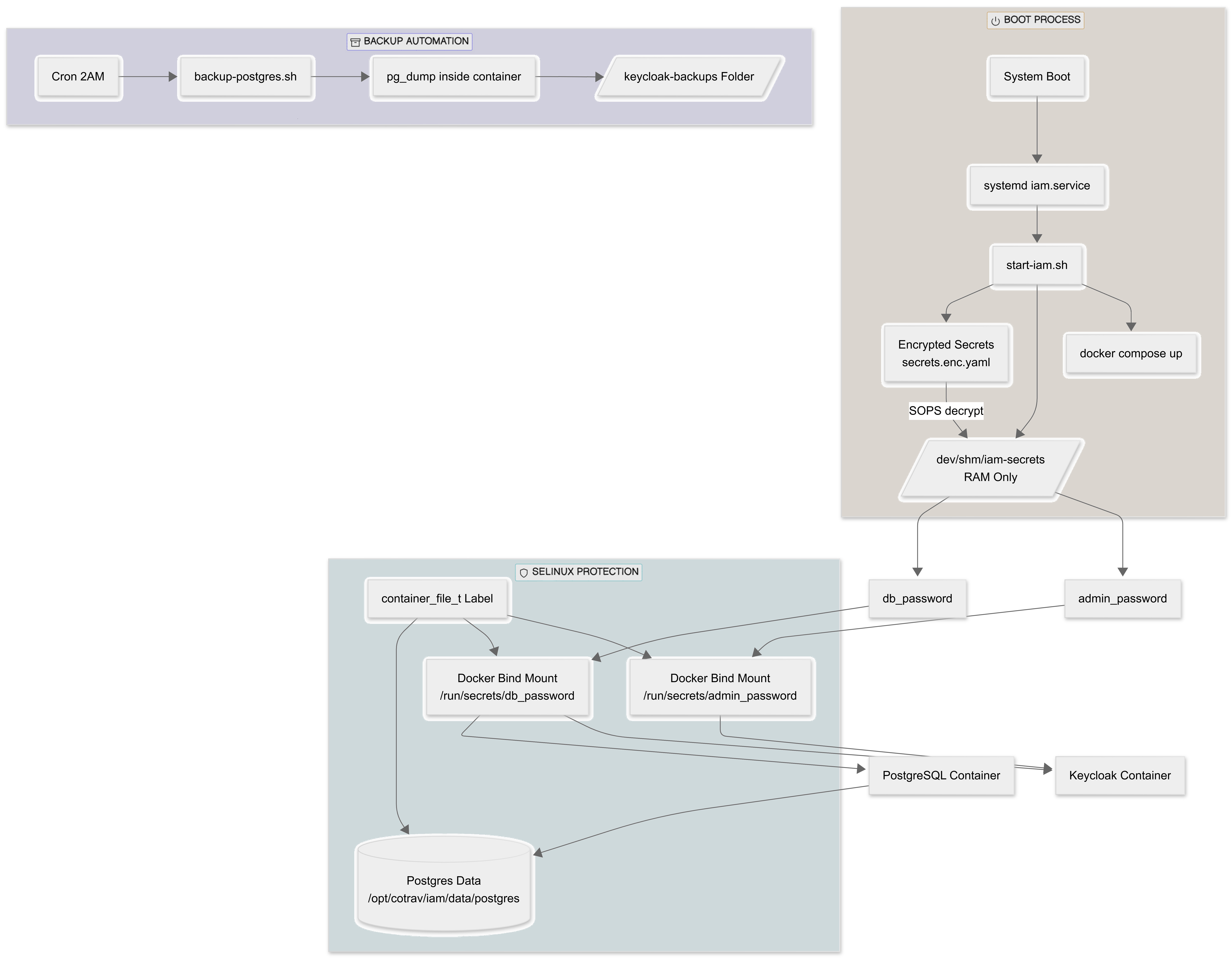
Directory Structure
/opt/travsetup/iam
│
├── docker-compose.yml
├── Dockerfile
├── start-iam.sh
├── stop-iam.sh
│
├── secrets/
│   ├── secrets.enc.yaml
│   └── key.txt
│
├── data/
│   └── postgres/
│
├── logs/
│
└── keycloak-backups/
Create structure:
sudo mkdir -p /opt/travsetup/iam/{data/postgres,secrets,logs,keycloak-backups}

### Command to set the readrewite for current user required for setting up prostgresql
sudo chown -R $USER:$USER /opt/travsetup
Prerequisits:
1. SOPS (Git Secret Opsrations) production-grade setup using SOPS (Secrets Operations) to implement standard approach by useing File-Based Secrets.
2. Git Age - for key decryption.
Install SOPS on windows
1. Download stable version .exe file from Releases · getsops/sops
2. Install:
- Create a folder such as
C:\Program Files\Sops\. - Move the downloaded
.exeinto that folder and rename it tosops.exefor easier use. - Add that folder path to your system's Environment Variables (PATH) to run it from any command prompt.
3. using package manager like winget run below command in directory C:\Program Files\Sops\
**cmd**

winget install Mozilla.SOPS
Install SOPS on Linux
For initial system updates (this requires system reboot):
sudo dnf update -y
Check if rebbot require:
needs-restarting -r
if hint is return reboot is required.
Navigate to Releases · getsops/sops
Follow the Installation guide for linux
# Download the binary
curl -LO https://github.com/getsops/sops/releases/download/v3.11.0/sops-v3.11.0.linux.amd64

# Move the binary in to your PATH
mv sops-v3.11.0.linux.amd64 /usr/local/bin/sops

# Make the binary executable
chmod +x /usr/local/bin/sops
4. verify SOPS is installed by running below command in cmd
cmd

spos --version
Install git-age on linux
#Install Git - First, ensure Git is installed on your system using the DNF package manager:  \\ sudo dnf install git -y

#Verify the installation by checking the version:
git --version

# Enable EPEL repository:
sudo dnf install epel-release -y

#Install age:
sudo dnf install age -y

#Verify Installation
age --version
Install git-Age on windows
1. Open cmd and execute below command to install git-age
winget install -e --id prskr.git-age
2. verify git is installed
git-age version

where git-age
1. Generate a Key
Open PowerShell in C:/project/iam and run: (Below command is same for linux and windows)
age-keygen -o key.txt
This key.txt is your “Master Key.” Never share it.
2. Create the Encrypted Secrets File
Create a file named secrets.yaml (plain text for now):
yml

db_password: YourSuperSecretDBPass123
admin_password: YourInitialAdminPass123
Linux command to create file
vi secrets.yaml

# then press i to insert. Paste the secrets.

# press Esc

:wq
Now, encrypt it using SOPS and your Age key:
Linux:
#set SOPS_AGE_KEY_FILE
export SOPS_AGE_KEY_FILE=/opt/cotrav/iam/key.txt

#verify SOPS_AGE_KEY_FILE
echo $SOPS_AGE_KEY_FILE

#set AGE_PUBLIC_KEY
AGE_PUBLIC_KEY=$(grep "public key:" key.txt | awk '{print $4}')

#verify AGE_PUBLIC_KEY
echo $AGE_PUBLIC_KEY

sops --encrypt
  --age "$AGE_PUBLIC_KEY"
  --encrypted-regex '^(db_password|admin_password)$'
  secrets.yaml> secrets.enc.yaml

#verify encryption
cat secrets.enc.yaml

#expected result ::
db_password: ENC[AES256_GCM,data:q6I+xejYQKG8s3pnfITpvPYBYyUeRTWR,iv:Cgsr2fG+ls0t9sxMZIVyr3ci/I8qLErqrMYyvll7Tiw=,tag:yjPKvs3jNVmqWmI7uAnbaA==,type:str]
admin_password: ENC[AES256_GCM,data:ycmbc98jYgKYNbI/EbKhZDQSsfWp+qwfa+Q/hQ==,iv:6NNLGH+3dZbxGMXk+c4R2X0udBOR4moMlCvXETxHl6o=,tag:GpAM5EGQpae9wvCPhil+SQ==,type:str]
sops:
  age:
      - recipient: age1...
Windows:
# Set the environment variable so SOPS knows which key to use
$env:SOPS_AGE_KEY_FILE="C:/projects/iam/key.txt"

# Encrypt the file
sops --encrypt --age $(select-string "public key: " key.txt | %{$_.line.split(" ")[2]}) --encrypted-regex '^(db_password|admin_password)$' secrets.yaml> secrets.enc.yaml
You can now safely delete the original secrets.yaml. Only secrets.enc.yaml remains.
3. Dockerfile and Composer
These file setup will take care of:
- Pin a specific Keycloak version (so restart doesn’t auto-upgrade)
- Only upgrade when YOU decide
- PostgreSQL data stored on server HDD (not anonymous Docker volume)
3.1 Linux - Dockerfile (opt/cotrav/iam/Dockerfile)
 vi Dockerfile

# type " i " to paste the file details

#check the contents of dockerfile

cat Dockerfile
Dockerfile
# -------------------------------
# Stage 1: Build & Optimize
# -------------------------------
FROM quay.io/keycloak/keycloak:26.1.0 AS builder

ENV KC_DB=postgres
ENV KC_HEALTH_ENABLED=true
ENV KC_METRICS_ENABLED=true

WORKDIR /opt/keycloak

# Build optimized Keycloak distribution
RUN /opt/keycloak/bin/kc.sh build

# -------------------------------
# Stage 2: Final Runtime Image
# -------------------------------
FROM quay.io/keycloak/keycloak:26.1.0

ENV KC_DB=postgres
ENV KC_HEALTH_ENABLED=true
ENV KC_METRICS_ENABLED=true

WORKDIR /opt/keycloak

# Copy optimized build from builder stage
COPY --from=builder /opt/keycloak/ /opt/keycloak

# Run Keycloak in production mode
ENTRYPOINT ["/opt/keycloak/bin/kc.sh", "start", "--optimized"]
3.2 The Dockerfile ( C:/project/iam/Dockerfile )
The Dockerfile for the build optimization. It does not handle secrets.
**dockerfile **

# Stage 1: Build/Optimize
FROM quay.io/keycloak/keycloak:26.1.0 as builder

ENV KC_DB=postgres
ENV KC_HEALTH_ENABLED=true
ENV KC_METRICS_ENABLED=true

# Optimize for the chosen database
RUN /opt/keycloak/bin/kc.sh build

# Stage 2: Final Image
FROM quay.io/keycloak/keycloak:26.1.0
COPY --from=builder /opt/keycloak/ /opt/keycloak

# Use 'start' (production mode) with optimization
ENTRYPOINT ["/opt/keycloak/bin/kc.sh", "start", "--optimized"]
4 The Compose File
4.1 The Compose File ( opt/cotrav/iam/docker-compose.yml) - Linux
services:
postgres:
  image: postgres:16
  container_name: keycloak_db
  restart: unless-stopped
  environment:
    POSTGRES_DB: keycloak
    POSTGRES_USER: keycloak_user
    POSTGRES_PASSWORD_FILE: /run/secrets/db_password
  secrets:
    - db_password
  volumes:
    - /opt/cotrav/iam/postgresql/data:/var/lib/postgresql/data
  healthcheck:
    test: ["CMD-SHELL", "pg_isready -U keycloak_user -d keycloak"]
    interval: 5s
    retries: 5
  networks:
    - iam_network

keycloak:
  build: .
  image: local/keycloak-fixed:26.1.0
  container_name: keycloak_app
  restart: unless-stopped
  ports:
    - "8080:8080"
  environment:
    KC_DB: postgres
    KC_DB_URL: jdbc:postgresql://keycloak_db:5432/keycloak
    KC_DB_USERNAME: keycloak_user
    KC_DB_PASSWORD_FILE: /run/secrets/db_password
    KC_BOOTSTRAP_ADMIN_USERNAME: admin
    KC_BOOTSTRAP_ADMIN_PASSWORD_FILE: /run/secrets/admin_password
    KC_HOSTNAME_STRICT: "false"
    KC_HTTP_ENABLED: "true"
  secrets:
    - db_password
    - admin_password
  depends_on:
    postgres:
      condition: service_healthy
  networks:
    - iam_network

secrets:
db_password:
  file: /opt/cotrav/iam/temp_db_pass.txt
admin_password:
  file: /opt/cotrav/iam/temp_admin_pass.txt

networks:
iam_network:
  driver: bridge
4.2 The Compose File ( C:/project/iam/docker-compose.yml) - windows
**yml**

services:
  postgres:
    image: postgres:16
    container_name: keycloak_db
    environment:
      POSTGRES_DB: keycloak
      POSTGRES_USER: keycloak_user
      POSTGRES_PASSWORD_FILE: /run/secrets/db_password
    secrets:
      - db_password
    volumes:
      - C:/project/iam/postgres_data:/var/lib/postgresql/data
    healthcheck:
      test: ["CMD-SHELL", "pg_isready -U keycloak_user -d keycloak"]
      interval: 5s
    networks:
      - iam_network

  keycloak:
    build: .
    container_name: keycloak_app
    image: local/keycloak-fixed:v1
    ports:
      - "8080:8080"
    environment:
      KC_DB: postgres
      KC_DB_URL: jdbc:postgresql://keycloak_db:5432/keycloak
      KC_DB_USERNAME: keycloak_user
      # Keycloak reads the secret from the file mount
      KC_DB_PASSWORD_FILE: /run/secrets/db_password
      KC_BOOTSTRAP_ADMIN_USERNAME: admin
      KC_BOOTSTRAP_ADMIN_PASSWORD_FILE: /run/secrets/admin_password
      KC_HOSTNAME_STRICT: "false"
      KC_HTTP_ENABLED: "true"
    secrets:
      - db_password
      - admin_password
    depends_on:
      postgres:
        condition: service_healthy
    networks:
      - iam_network

secrets:
  db_password:
    file: ./temp_db_pass.txt
  admin_password:
    file: ./temp_admin_pass.txt

networks:
  iam_network:
    driver: bridge
4. The Runtime Workflow
We must decrypt our secrets just before we run Docker. This ensures passwords only exist as temporary files during the session.
4.1 The "PowerShell Start Script" (iam/ start-iam.sh ) - Linux
vi start-iam.sh
#!/bin/bash

set -e  # Exit immediately if a command fails

echo "--- Setting SOPS key location..."
export SOPS_AGE_KEY_FILE=/opt/cotrav/iam/key.txt

echo "--- Decrypting secrets..."
sops --decrypt --extract '["db_password"]' secrets.enc.yaml> temp_db_pass.txt
sops --decrypt --extract '["admin_password"]' secrets.enc.yaml> temp_admin_pass.txt

chmod 600 temp_db_pass.txt temp_admin_pass.txt

echo "--- Starting Docker containers..."
docker compose up -d --build

echo "--- Cleaning up temporary secret files..."
rm -f temp_db_pass.txt temp_admin_pass.txt

echo "--- IAM stack started successfully."
execute
./start-iam.sh
4.2 The "PowerShell Start Script" ( start-iam.ps1 ) - Windows
# 1. Set the Key location
$env:SOPS_AGE_KEY_FILE="C:/project/iam/key.txt"

# 2. Decrypt individual values into temporary files
sops --decrypt --extract '["db_password"]' secrets.enc.yaml> temp_db_pass.txt
sops --decrypt --extract '["admin_password"]' secrets.enc.yaml> temp_admin_pass.txt

# 3. Start Docker
docker compose up -d --build

# 4. (Optional) Delete temp files immediately after containers start
# Docker Compose keeps the mount active even if the source file is deleted
Remove-Item temp_db_pass.txt
Remove-Item temp_admin_pass.txt
Run in powershell
====== Emergency Recovery Key ======

If you ever lose your credentials, forget your password, or accidentally delete your admin user from the Keycloak UI, this command is your **Emergency Recovery Key**.

If you wake up tomorrow and realize you forgot the password you set in Phase 2:

  - Open your Windows PowerShell.
  - Run:

<code>
**powershell**

docker exec -it keycloak_app /opt/keycloak/bin/kc.sh bootstrap-admin user --username recovery_admin --password NewSecurePass789 \
3. Go to localhost:8080 and log in with recovery_admin. You are back in control
Why it works for recovery:
- Direct Database Access: The command
kc.sh bootstrap-adminbypasses the login screen and writes a new admin user directly into the database. - No Existing Session Required: Unlike other management tools, you do not need to be “already logged in” to run this recovery command.
- Override Ability: If you run it with an existing username, it will effectively reset the password for that user.
Troubleshooting
To resolve issue :
./start-iam.sh — Setting SOPS key location… — Decrypting secrets… — Starting Docker containers… yaml: control characters are not allowed
Checkeck
cat -A docker-compose.yml
The expected result is each line ending with $ without any space. If no then chek the file type with following command
file docker-compose.yml
Expected result is “ASCII text” or “UTF-8 Unicode text”. If the result has anything like “ASCII text with…” or “CRLF” or anything else, safest way to remove it is by creating clean files once again. This needs to be checked for all files like secrets.yaml and Dockerfile.